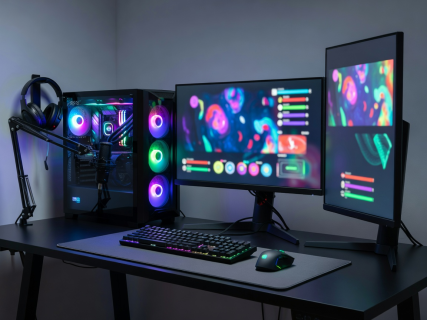
1. Connecting Your Display Cable Correctly
The single most common mistake beginner PC gamers make is plugging their HDMI or DisplayPort cable into the motherboard output instead of the dedicated Graphics Processing Unit (GPU).
Your graphics card is located further down the back of your computer tower with horizontal port slots. Plugging into the GPU ensures your gaming performance uses your computer's full graphical hardware power.
If your monitor supports 144Hz or higher refresh rates, always connect using a DisplayPort cable rather than standard HDMI to unlock maximum smoothness.
2. Unlocking Your Monitor Refresh Rate
By default, Windows sets brand-new monitors to a 60Hz refresh rate, even if you paid for a 144Hz or 240Hz screen. Follow these steps to unlock full fluidity:
- Right-click on your Windows desktop and select Display Settings.
- Scroll down and click Advanced Display Settings.
- Under Refresh Rate, select the highest available value (e.g., 144Hz or 165Hz).
- Click Keep Changes to save.
3. Initial Game Settings Checklist
When launching any video game for the first time, navigate to the Options or Graphics menu and apply these beginner-friendly standards:
- Display Mode: Set to Fullscreen or Borderless Windowed for minimal input delay.
- Motion Blur: Turn this OFF. Motion blur creates unnatural smudging when turning quickly.
- V-Sync (Vertical Sync): Turn off if you experience mouse sluggishness, or turn on if you see screen tearing.
- Field of View (FOV): Increase slightly (between 90° and 100°) to widen your peripheral vision.
4. Mouse Sensitivity & Pointer Precision
Windows includes a legacy feature called "Enhance Pointer Precision" which artificially accelerates your cursor depending on how fast you move your hand. For consistent aiming in games, disable this feature:
Go to Control Panel → Mouse Options → Pointer Options and uncheck Enhance Pointer Precision.
For verified gear compatibility and official setup utilities, visit Official Steam Setup Portal or official vendor drivers via NVIDIA Official Drivers.
5. Conclusion & Next Steps
With your display set up correctly and initial graphics calibrated, you are ready to enjoy smooth gameplay without performance hiccups. Check out our controller guide next if you plan to play with a gamepad.